
Get help
Preparing your account, what the cashier offers in New Zealand, where support is found and how to put the web app on your phone.
Verification, step by step
Go to your profile and open Verification. It has three upload fields for identity, address and payment; add a clear photo or scan to each.
Uploads and withdrawal requests are both reviewed. If more is needed, you can send it to support at any time, and one consistent name across all documents speeds the review.
Which documents
Identity
A passport, ID card, driver licence or another official document in their place.
Address
A utility bill, phone bill or bank statement showing your full name and address.
Payment
A screenshot or photo from online banking, a statement or your Skrill page that shows the deposit.
JPG, PNG or PDF, each 10 MB or less.
Deposits
Press Deposit to open the cashier, where the methods open to you appear with minimums. When we checked they were crypto (BTC from 0.00035, LTC from 0.5, USDT from 20), MiFinity and open banking from the equivalent of NZ$35.
Add the bonus code before paying if you want a bonus. After payment it is too late.
Withdrawals
Open the Withdraw tab, choose a method and an amount. Wagering on any active bonus must be done first. All winnings requests are checked before payment, and the casino may ask you to confirm identity and payment details.
Bonus winnings are capped under the bonus guide, so check the limits of the offer you used.
Installing the app
Slotornado is a web app, so there is nothing to fetch from a store. The steps below cover your phone.
Android
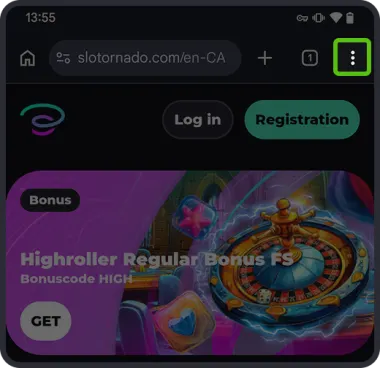 1
1In Chrome, open the site and use the three-dot menu.
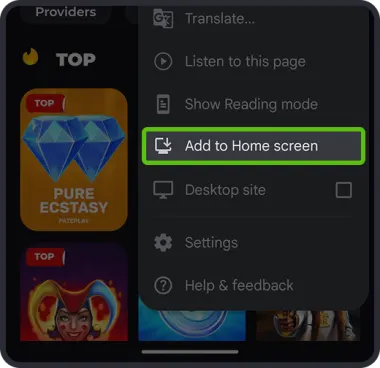 2
2Select "Add to Home screen".
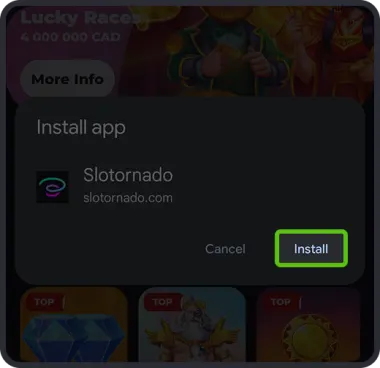 3
3Tap "Install".
iPhone (iOS)
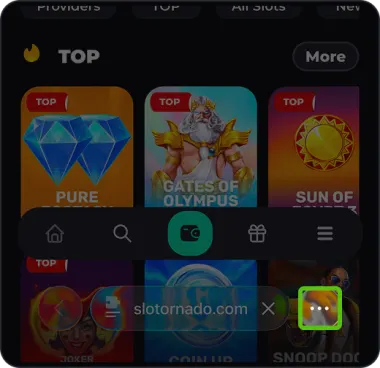 1
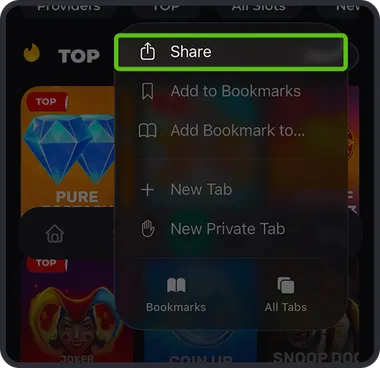
1In Safari, open the site and use the three dots in the address bar.
 2
2Tap Share.
 3
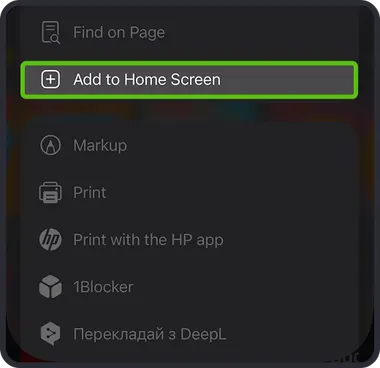
3Find "Add to Home Screen".
 4
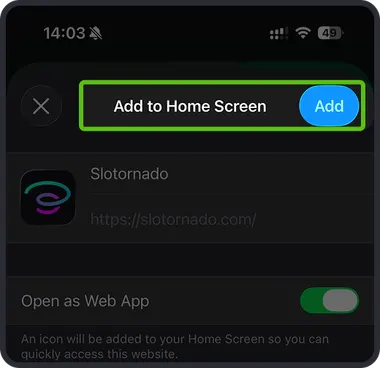
4Press Add, top right.
Contacting support
Live chat is in the corner of every casino page; you can also email support@slotornado.com. Quote your player ID, add a short description and attach screenshots if they help.